
Setup / step by step
Set up pi extensions
pi is a small agent harness built to be extended. Packages add the tools that make the agent useful beyond code, and Phosphor installs and configures them from Settings.
What ships with Phosphor
A model and pi’s built-in coding tools are enough to edit code. Add packages when a task needs more: researching a library, reading a ticket, checking a dashboard, or handing off a side investigation.
Phosphor ships six extensions of its own: artifacts, the context breakdown, opt-in Headroom integration, malformed tool-name repair, a wrong-worktree path guard, and a reload between turns that brings MCP changes into running lanes. MCP itself is built into pi, so connecting services needs no package: see MCP connectors.
A package can contain extensions, skills, prompt templates, and themes. A skill describes a procedure; an extension can register tools, commands, or a whole model provider. pi’s docs are the reference for all of it: extensions, packages, and skills. Phosphor’s own are in the bundled extension reference.
Install from Settings
- Open Settings → Extensions.
- Look through Recommended and check the package’s source. Pick one and choose Add.
- Watch the job output and confirm the package appears in Installed.
- For a package outside the catalog, use Add by spec with an npm, Git, or local-path spec. Choose global or workspace scope.
- Start a new session so pi loads the package. Claude Code, Web access, Computer use, and Subagents get their own settings tabs once installed.
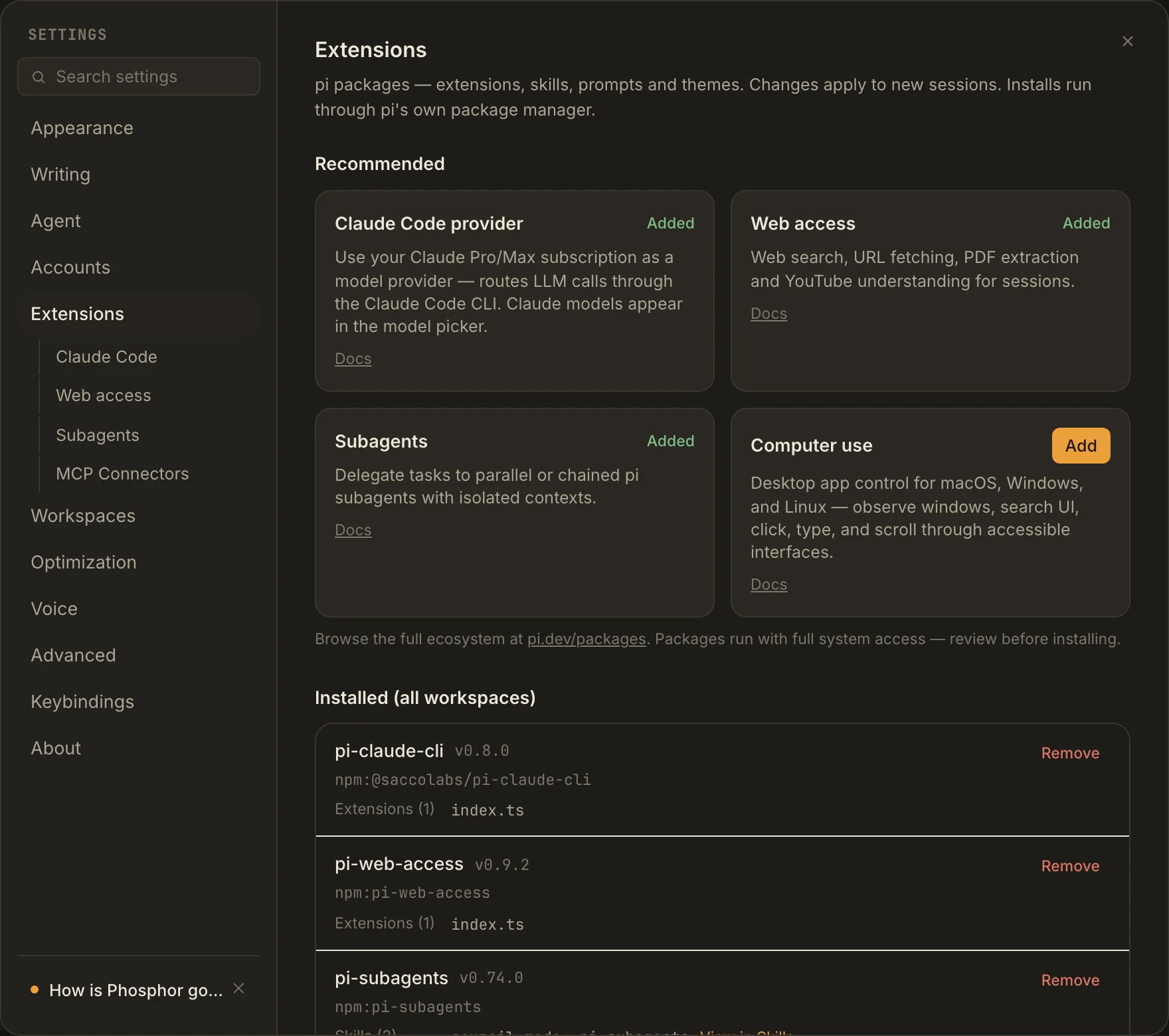
Claude Code provider
Recommended for Claude Pro and MaxUse your Claude Pro or Max plan, across as many Claude accounts as you have.
pi install npm:@saccolabs/pi-claude-cliThe way to spend a Claude Pro or Max plan in Phosphor. It needs the official Claude Code CLI. Add every Claude account you have, and a lane can move to another one when its plan runs low. The subscriptions and accounts guide covers sign-in, routing, and the end-to-end provider test.
Web access
Search the web, fetch pages, and read PDFs.
pi install npm:pi-web-accessAfter installing, open the Web access tab and set up a search provider. Each provider has its own requirements. In a new session, try a quick search and a page fetch, ask for source links, and check the tool output.
Subagents
Hand side tasks to separate agents with their own context.
pi install npm:pi-subagentsStart a new session and ask the agent to split independent work. Each child shows up in the chat with its current tool and its result. The Subagents tab explains foreground and background runs and where each setting lives. Every subagent makes its own model calls, so it spends tokens and quota.
Computer use
Let the agent see and click around desktop apps.
pi install npm:@injaneity/pi-computer-useCheck the Computer use tab and the package’s platform requirements, then grant the OS accessibility permissions it asks for. Try it on a test window before letting it click or type in anything sensitive.
Scope and updates
Global installs apply to every workspace. For a project install, run pi install -l npm:package-name inside that project. It writes to the project’s config. pi decides what to load based on scope and project trust, so a package being listed doesn’t mean a running session loaded it.
Use Update all in Extensions, or update one package by spec. From a terminal, pi update --extensions updates packages and plain pi update updates pi itself. A pinned package may need its version changed by hand.
After any package change, start a new session and give the new tool a quick test. Look at the tool output, not just the reply. Installed, signed in, and actually working are three different checks.
pi packages: install and scope · Writing pi extensions · Browse the package ecosystem · Phosphor extension contract