
Setup / step by step
Connect your services
Let the agent use the services you pick. Add a service, sign in through your browser, and check the connection before you rely on it.
1. MCP is built into pi
MCP is the protocol. A connector is one configured MCP server. pi 1.2.0 and later connect MCP servers themselves, so there is nothing to install: open Settings → MCP Connectors and add a service.
Used the MCP adapter package before? The tab first shows a card that moves your servers to pi’s own mcp.json, backs up every file it changes, and removes the adapter. It lists every change before you choose Move to pi’s MCP. Sign in again to each service afterwards: the adapter’s tokens don’t carry over.
2. Add and authorize a service
- Open MCP Connectors.
- Find the service under Add a connector and fill in any required fields, like the Datadog site or Slack client ID.
- Choose Add. Phosphor writes the configuration and starts pi’s sign-in.
- pi opens your browser. Finish signing in there, and check the scopes and which account or workspace you’re granting.
- Go back to Phosphor. The row shows the sign-in link with Open again in case you closed the tab, and Cancel.
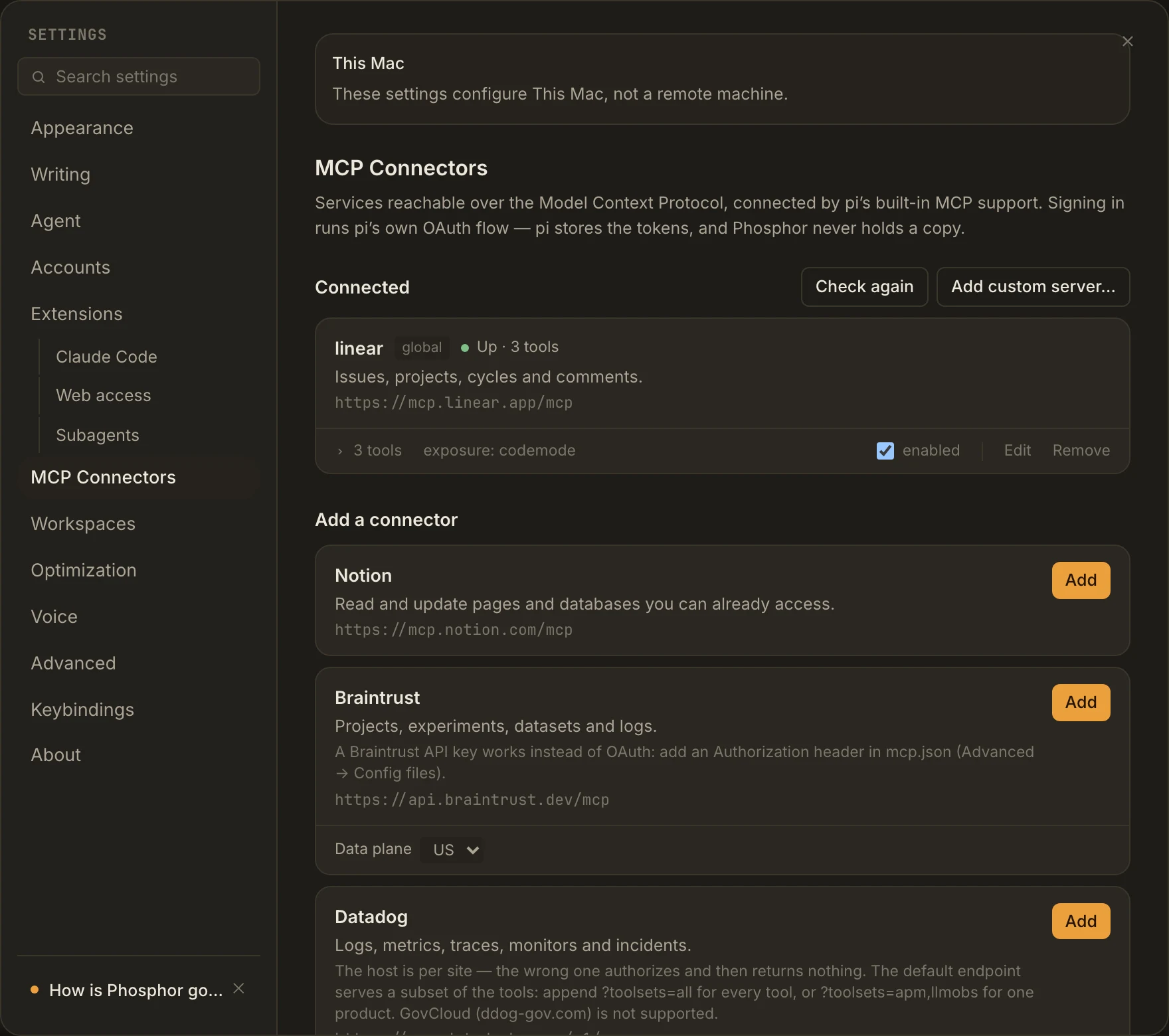
The full-size image only has example config too. pi keeps the OAuth tokens, not Phosphor.
3. Check the connection, then the task
Opening the tab checks every enabled server once, and Check again repeats it. Each row then reads Up with a tool count, Needs sign-in, Down, Disconnected, or Disabled.
Signing in and checking don’t call a model and need no open session, so they cost no tokens. A running chat picks up a new sign-in on its next message.
Ask for something small and read-only, like “Find the Linear issue I specify and summarize its acceptance criteria. Do not change it.” Check the tool result, not just the answer. Tool calls during a task use normal model tokens and may count against the service’s quota.
By default pi doesn’t send every tool’s schema with every request. The agent finds tools with a search and calls them from a short script, which shows in the chat as “Ran a script”. Setting a server’s exposure to direct skips that and uses more context on every request.
What each service needs
Issues and projects
Linear
Pick the workspace you want the agent in, and check the scopes before you approve.
Linear setup docs ↗Docs and wikis
Notion
Share only the pages the agent needs. You don’t have to grant the whole workspace.
Notion setup docs ↗Evals and traces
Braintrust
Pick your org’s US or EU data plane. Use OAuth or an API key scoped to the projects you need. Traces can contain sensitive inputs.
Braintrust setup docs ↗Logs and metrics
Datadog
Set the Datadog site your org uses before adding the connector.
Datadog setup docs ↗Database and project tools
Supabase
The catalog entry is read-only by default. Pin it to one project if you can. Without a project ref, it can reach every project your account can.
Supabase setup docs ↗Read-only account data
Questrade
The catalog entry only asks for read scopes. It’s still your financial data, even with trading off.
Questrade setup docs ↗Meeting notes
Fellow
A workspace admin has to turn on Security → Allow users to create MCP connections first. Only send meeting content to providers you trust.
Fellow setup docs ↗Channels and threads
Slack
Needs your own registered Slack app with a client ID, PKCE, and the right user scopes. A normal Slack login isn’t enough. Follow “Set up the app” on the connector card.
Slack setup docs ↗The tools you get depend on the server, your account, and the scopes you grant. Supabase and Questrade default to read-only; other connectors don’t. Supabase’s read-only endpoint also doesn’t shrink the OAuth grant, so the token still has write scopes. Pin it to a project and review its permissions.
Add a custom MCP server
In MCP Connectors, add a custom server with either a URL or a local command and its arguments, and pick a scope. A command-based server runs a program on your machine, so review it like any package you install.
Check it after saving. A running chat loads the change before its next message. A project server replaces a global one with the same name, and pi only reads a project’s config once you’ve trusted the folder: run pi in a terminal there and choose Trust.
Using your Claude subscription? Add servers here too. Phosphor keeps the Claude CLI’s own MCP config and claude.ai connectors out on purpose, so they aren’t imported.
Permissions and troubleshooting
- Needs sign-in: use Sign in for the account you want.
- Down: check the server URL, your network, and anything a local command needs. Then Check again.
- Slack’s Add is disabled: finish setting up your Slack app first: client ID, redirect URI, PKCE, and scopes. “Set up the app” on the card has the manifest.
- Tools missing from a running chat: send another message. Phosphor reloads a chat’s MCP config before its next turn when it changed.
- The wrong config wins: check scope and overrides in Advanced instead of copying credentials into more files.
Grant only the access the agent needs. Some tools can change data in the service. Worktrees and the artifact sandbox don’t limit what a connected service can do. Keep credentials and callback URLs out of bug reports.
MCP configuration, scope resolution, and OAuth reference · pi’s built-in MCP