
Setup / step by step
Subscriptions and accounts
Sign in to the plans you already pay for, and add more than one. When a lane uses up one plan’s allowance, move it to another and keep going.
Which plans work
You don’t need Claude Code to use Phosphor. Any provider pi supports works, including API keys and your own endpoints. These are the subscription plans you can sign in with:
- ChatGPT Plus or Pro: pi’s built-in Codex sign-in, under Settings → Accounts. You don’t need the Codex CLI.
- Claude Pro or Max: the official Claude Code CLI plus the
@saccolabs/pi-claude-cliprovider. Its logins live under Settings → Extensions → Claude Code, and you can add several. - GitHub Copilot: Settings → Accounts. Copilot Enterprise Server uses pi’s terminal login.
- Kimi For Coding: Settings → Accounts.
Settings → Accounts also has a direct Anthropic sign-in, but it bills extra usage rather than your plan’s allowance. To spend a Claude Pro or Max plan, use the Claude Code provider. API keys and custom endpoints are set up in pi: see providers and custom models in pi’s docs.
The setup we recommend
Every plan has a limit: a 5-hour window, a weekly cap, or a monthly allowance, depending on the plan. With one plan, hitting it stops your work. With several, a lane moves to the next one and keeps going.
- Two or more Claude Max accounts through Claude Code. Each login is kept separately, and routing can spread new sessions across them.
- ChatGPT through Codex, for a second model family on its own allowance.
- Kimi For Coding or Copilot, if you have them.
Only add accounts you’re allowed to use. This spreads your work across plans you already have. It doesn’t lift any provider’s limits or change their terms.
Sign in to ChatGPT, Copilot, and Kimi
- Open Settings with Cmd+, on macOS or Ctrl+, on Windows/Linux, then select Accounts. Each provider pi can sign into has a row that says whether it’s ready.
- Choose Sign in and finish in your browser. A ChatGPT row then shows which account is signed in.
- pi keeps one sign-in per provider. Sign in again switches that provider to another account.
If sign-in from Settings doesn’t finish, run pi in a terminal and use /login. These are pi’s own credentials. Claude Code logins are kept separately, below.
Claude: before you begin
Finish installing Phosphor and pi first. You also need the official Claude Code CLI and a Claude plan that covers how you plan to use it. This guide covers Pro and Max. Anthropic’s terms, limits, and extra-usage charges still apply.
Install Claude Code with its official setup instructions and check that claude --version works. Phosphor needs pi-claude-cli 0.10.0 or newer and Claude Code 2.1.263 or newer.
The provider drives the official CLI for you. Don’t pull a token out of your Claude subscription or paste one into pi’s API key settings.
Claude: install the provider
- Open Settings with Cmd+, on macOS or Ctrl+, on Windows/Linux.
- Select Extensions. Under Recommended, find Claude Code provider and choose Add. If the card says it needs the Claude CLI on your PATH, install the CLI and make it visible to Phosphor before testing the provider.
- Wait for the install job to finish. A Claude Code tab then shows up under Extensions.
Or from a terminal:
pi install npm:@saccolabs/pi-claude-cli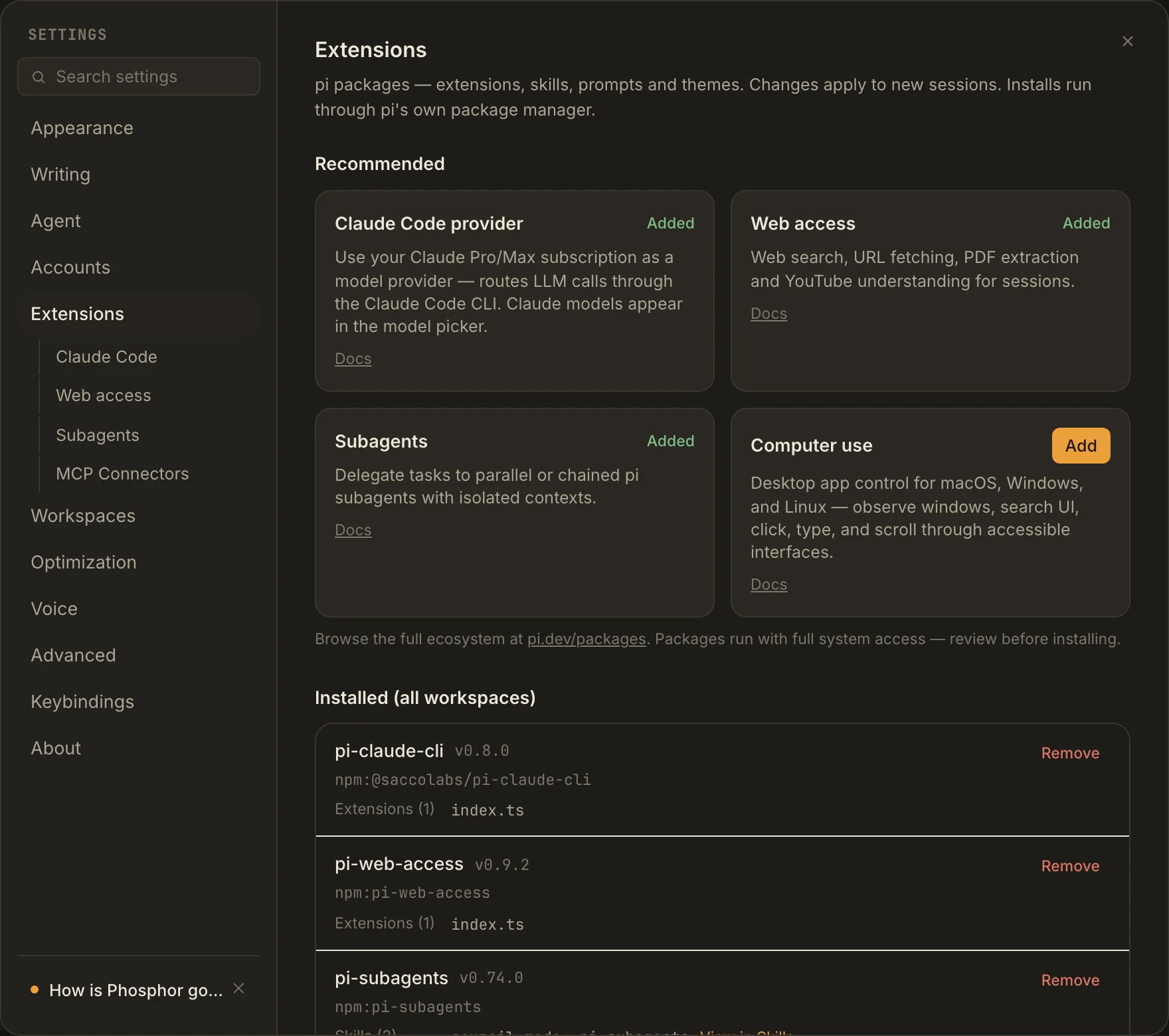
Install globally the first time. A project install only applies to that workspace, and different global and project versions get confusing fast. After installing or updating, let running work finish and start a new session.
Claude: add your first account
- Open Settings → Extensions → Claude Code.
- Check the Health rows: the extension must be installed and the
claudebinary found. - If your existing Claude CLI login shows up, make sure it’s the account you want. If not, choose Add account.
- Finish signing in to Claude in your browser. If Phosphor asks for a code, paste the one Claude shows you into Paste code and choose Continue. Don’t share that code.
- Check that the account row appears. Use Sign in again to renew an expired login.
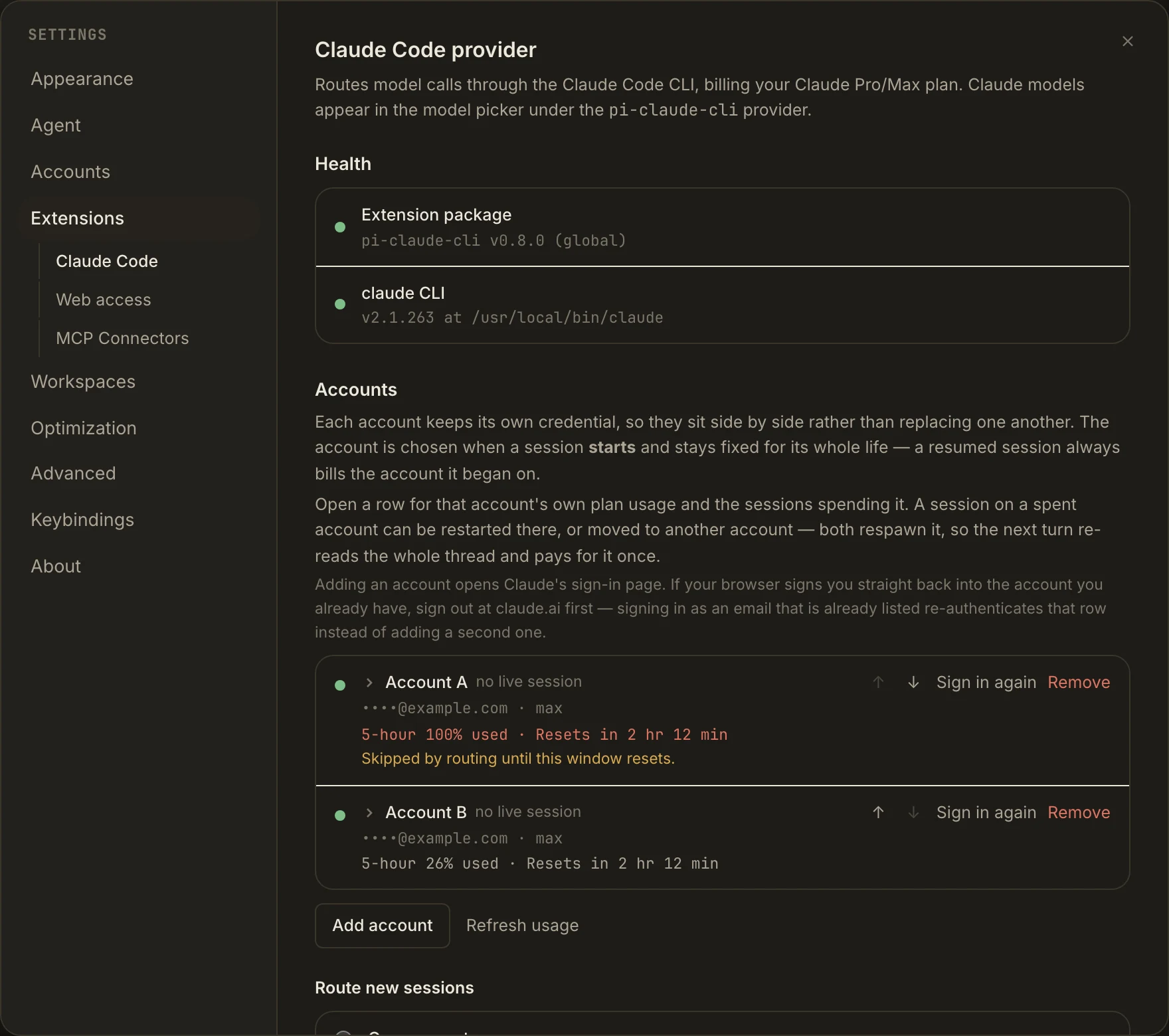
Two places, two kinds of account: Settings → Accounts holds pi’s provider sign-ins. The Claude Code tab holds the Claude CLI logins this package uses.
Claude: test the provider, then select it
- Scroll to Prove it end to end and choose Test provider.
- Check the job output. A working round trip prints
phosphor-provider-okand a confirmation. This sends a small real prompt, so it uses a little plan quota. - Start a new session. In the composer’s model menu, choose a Claude model under
pi-claude-cli. - Send a small prompt. Open the context meter to check which Claude account the session is using.
Leave the context window setting at its default for now. A bigger window means more history before compaction, but each request can re-read more context. It doesn’t raise your plan’s limits.
Claude: add another authorized account
In the same tab, choose Add account again. Each login is stored separately, so adding one doesn’t replace another.
If the browser signs you straight back into the first account, sign out at claude.ai and try again. Signing in with an address that’s already listed just renews that row.
Only add accounts you’re allowed to use. Routing spreads your sessions across them. It doesn’t lift provider limits or change anyone’s terms. Choose Refresh usage to update the numbers routing uses for its next pick.
Claude: choose how new sessions are routed
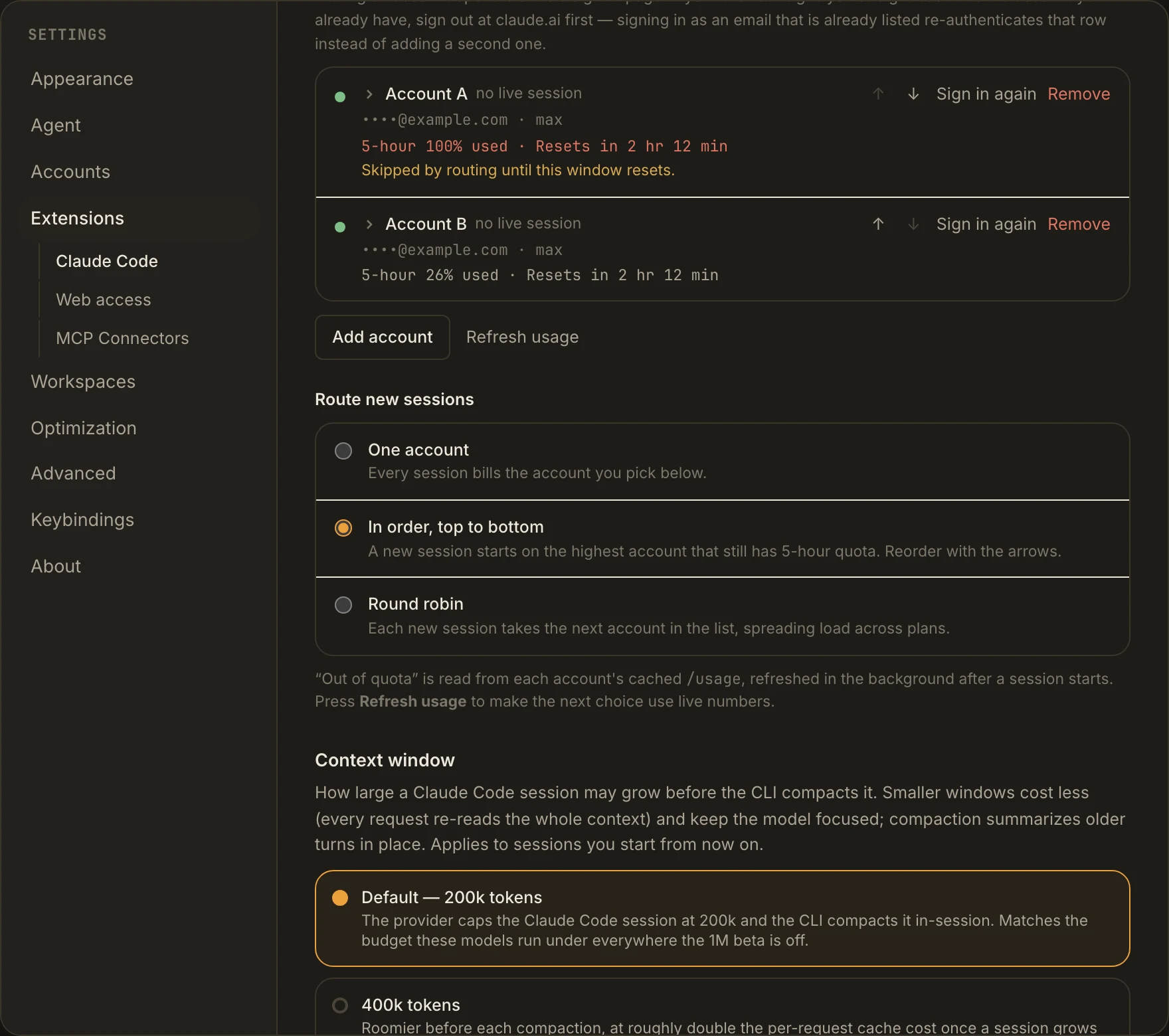
- One account: every new session uses the account you pick.
- In order, top to bottom: new sessions use the first eligible account. Reorder with the arrows. Accounts that are unavailable, out of quota, or spending overage credits can be skipped.
- Round robin: new sessions take turns across eligible accounts.
Usage numbers can be cached. If they’re missing or stale, don’t assume the account has room. When it matters, check usage and billing with the provider.
When a plan runs out
Open the context meter in the composer to see how much of your Claude or ChatGPT plan is used, per window, with reset times. When a Claude account gets close to its limit, a banner also shows above the composer.
- Move to another Claude account: in the context meter, choose Switch account. The lane restarts on that account from its saved history.
- Move to another model: pick one from the composer’s model menu, from any provider you’re signed into. The conversation carries over.
Either way, the next turn re-reads the whole conversation on the new plan, so it costs context. Let the current turn finish first. With In order or Round robin routing, new sessions can also skip a Claude account that’s at its limit or spending overage credits.
Troubleshooting and updates
- Claude Code tab missing: check the provider is installed in the right scope, then reopen Settings.
- CLI not found: check the path under Health. Apps launched from the desktop don’t always get the Node or shell setup your terminal has.
- Package or CLI is old: each has its own Update control. From a terminal:
pi update npm:@saccolabs/pi-claude-cliandclaude update. Updating one doesn’t update the other. - A new model is missing: the model list comes from pi, not the Claude CLI, so update pi too.
- Old session reports a context-policy change: choose Rebuild the Claude session. The next turn reloads saved history, which costs one full-context cache write.
- Claude can’t see your existing MCP servers: that’s on purpose. Phosphor uses pi’s built-in MCP, not Claude’s own MCP config. Add those services in MCP Connectors.
Provider architecture and version requirements · Account reference · Provider source and releases